Setup steps
Integrate OpenCode CLI with Pioneer:- Download and set up the OpenCode CLI.
- Sign into Pioneer and get your API key from agent.pioneer.ai/api-keys
- In a fresh terminal, start OpenCode. Include
OPENCODE_ENABLE_EXA=1if you want web search (OpenCode disables it for custom providers by default):
- Type
/connectand selectPioneerfrom the drop-down list.
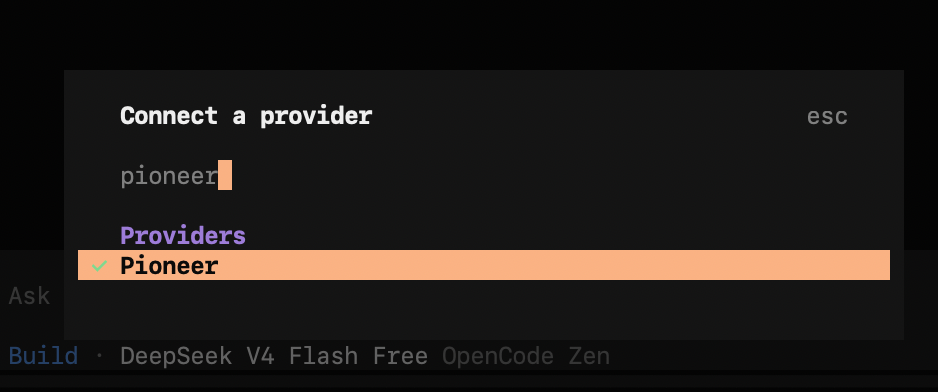
- Add your Pioneer API key.
- Choose
Pioneer Autoto use Pioneer’s model router. - To switch between models, use the
/modelscommand and select one from our catalog of 70+ models (and growing).
OPENCODE_ENABLE_EXA=1 is set. Allow the websearch permission if OpenCode prompts for it. Omit the flag to keep search off.
Integrate OpenCode Desktop app with Pioneer:
- Download and install OpenCode Desktop app
- In the app: go to Settings → Providers → Pioneer
- Enter your Pioneer API key
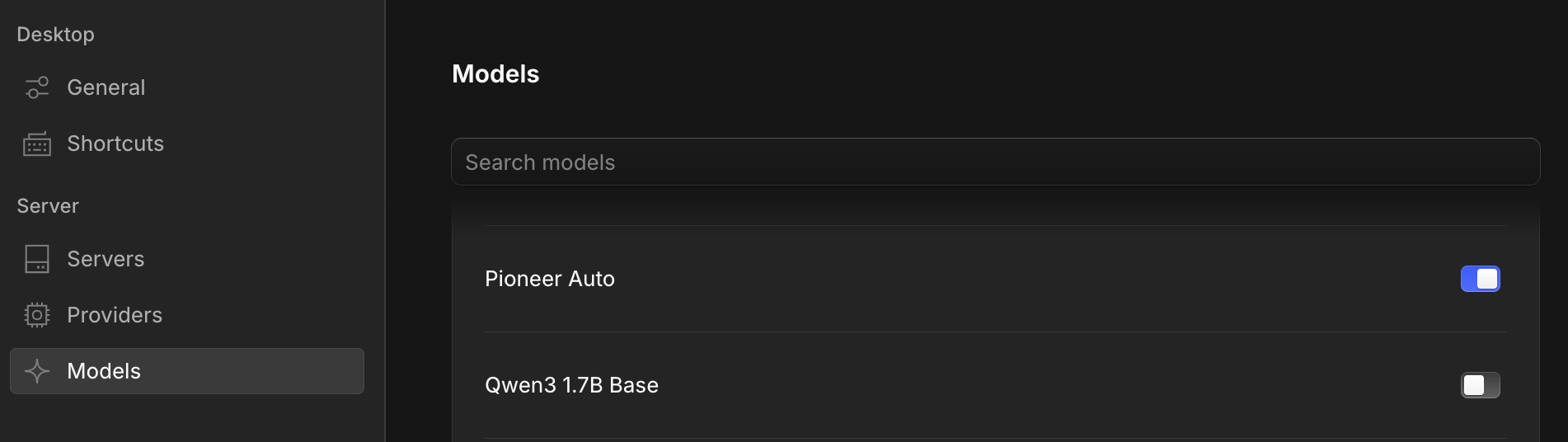
- In Settings → Models: toggle on the models available in Pioneer model catalog that you’d like to use. Make sure to toggle on
Pioneer Autoif you’d like to use Pioneer’s model router.