> ## Documentation Index
> Fetch the complete documentation index at: https://docs.pioneer.ai/llms.txt
> Use this file to discover all available pages before exploring further.
# OpenCode
> Connect the OpenCode CLI or desktop app to Pioneer to route model calls, switch between 70+ models, and optionally enable Exa-powered web search.
## Setup steps
**Integrate OpenCode CLI with Pioneer:**
1. Download and [set up](https://opencode.ai/download) the OpenCode CLI.
2. Sign into Pioneer and get your API key from [agent.pioneer.ai/api-keys](https://agent.pioneer.ai/api-keys)
3. In a fresh terminal, start OpenCode:
```bash theme={null}
opencode
```
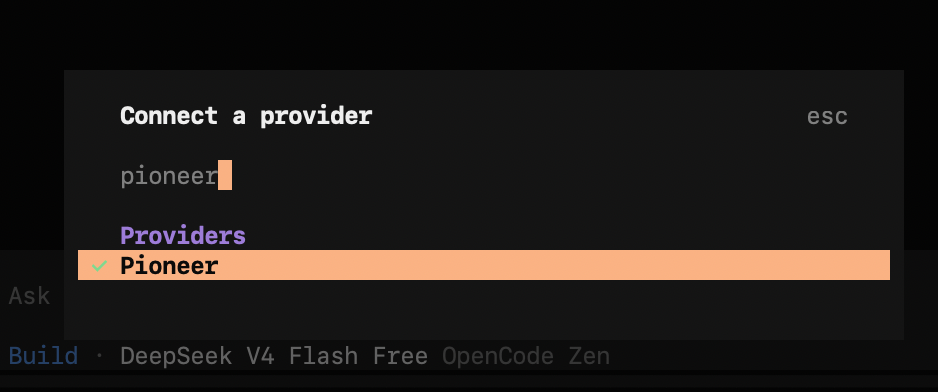
4. Type `/connect` command and select `Pioneer` from the drop-down list.
4. Add in your Pioneer API key.
5. Choose `Pioneer Auto` to use Pioneer's model router. Learn more about our model router [here](/concepts/router).
6. To switch between models, use the `/models` command and select one from our catalog of 70+ models (and growing).
**integrate OpenCode Desktop app with Pioneer:**
1. Download and install OpenCode Desktop app
2. In the app: go to Settings → Providers → Pioneer
3. Enter you Pioneer API key
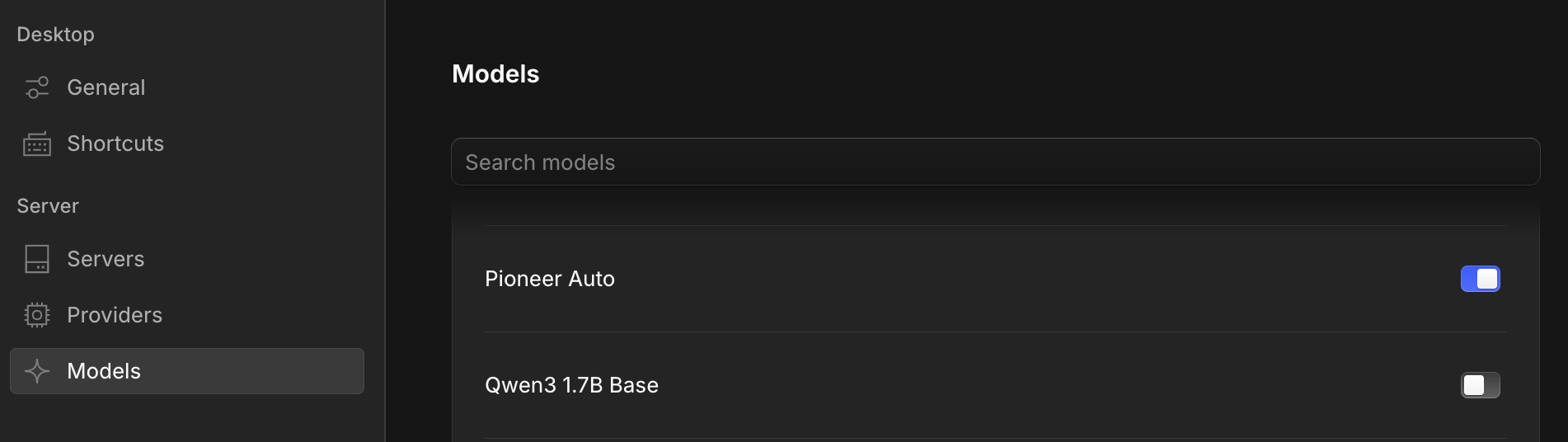
4. In Settings → Models: toggle on the models available in Pioneer model catalog that you'd like to use. Make sure to toggle on `Pioneer Auto` if you'd like to use Pioneer's model router.
## Advanced: enable web search with Exa
`/connect` covers routing model calls through Pioneer, but it doesn't expose OpenCode's web search tool. To enable Exa-powered web search, launch OpenCode with the manual provider config instead, adding `OPENCODE_ENABLE_EXA=1`:
```bash theme={null}
OPENCODE_ENABLE_EXA=1 PIONEER_API_KEY="" OPENCODE_CONFIG_CONTENT='{"provider":{"pioneer":{"npm":"@ai-sdk/openai-compatible","name":"Pioneer","options":{"baseURL":"https://api.pioneer.ai/v1","apiKey":"{env:PIONEER_API_KEY}"},"models":{"pioneer/auto":{"name":"Pioneer Auto Router"},"claude-opus-4-8":{"name":"Claude Opus 4.8"},"claude-opus-4-7":{"name":"Claude Opus 4.7"},"claude-opus-4-6":{"name":"Claude Opus 4.6"},"claude-opus-4-5":{"name":"Claude Opus 4.5"},"claude-sonnet-4-6":{"name":"Claude Sonnet 4.6"},"claude-haiku-4-5":{"name":"Claude Haiku 4.5"},"gpt-5.5":{"name":"GPT-5.5"},"gpt-5.4":{"name":"GPT-5.4"},"gpt-5.1":{"name":"GPT-5.1"},"gpt-4.1":{"name":"GPT-4.1"},"gpt-4o":{"name":"GPT-4o"},"gpt-4o-mini":{"name":"GPT-4o mini"},"gemini-3.1-pro":{"name":"Gemini 3.1 Pro"},"gemini-3.5-flash":{"name":"Gemini 3.5 Flash"}}}}}' opencode
```
Never paste a real API key into docs, screenshots, or shared shell history — use an env var or your secrets manager. Rotate any key that's been exposed.
 4. Add in your Pioneer API key.
5. Choose `Pioneer Auto` to use Pioneer's model router. Learn more about our model router [here](/concepts/router).
6. To switch between models, use the `/models` command and select one from our catalog of 70+ models (and growing).
**integrate OpenCode Desktop app with Pioneer:**
1. Download and install OpenCode Desktop app
2. In the app: go to Settings → Providers → Pioneer
3. Enter you Pioneer API key
4. In Settings → Models: toggle on the models available in Pioneer model catalog that you'd like to use. Make sure to toggle on `Pioneer Auto` if you'd like to use Pioneer's model router.
4. Add in your Pioneer API key.
5. Choose `Pioneer Auto` to use Pioneer's model router. Learn more about our model router [here](/concepts/router).
6. To switch between models, use the `/models` command and select one from our catalog of 70+ models (and growing).
**integrate OpenCode Desktop app with Pioneer:**
1. Download and install OpenCode Desktop app
2. In the app: go to Settings → Providers → Pioneer
3. Enter you Pioneer API key
4. In Settings → Models: toggle on the models available in Pioneer model catalog that you'd like to use. Make sure to toggle on `Pioneer Auto` if you'd like to use Pioneer's model router.
 ## Advanced: enable web search with Exa
`/connect` covers routing model calls through Pioneer, but it doesn't expose OpenCode's web search tool. To enable Exa-powered web search, launch OpenCode with the manual provider config instead, adding `OPENCODE_ENABLE_EXA=1`:
```bash theme={null}
OPENCODE_ENABLE_EXA=1 PIONEER_API_KEY="
## Advanced: enable web search with Exa
`/connect` covers routing model calls through Pioneer, but it doesn't expose OpenCode's web search tool. To enable Exa-powered web search, launch OpenCode with the manual provider config instead, adding `OPENCODE_ENABLE_EXA=1`:
```bash theme={null}
OPENCODE_ENABLE_EXA=1 PIONEER_API_KEY="